How to Install Airtek TV on Fire TV Stick
Complete step-by-step guide to set up Airtek TV on your Amazon Fire TV Stick, FireStick 4K, Fire TV Cube, or Fire TV Television.
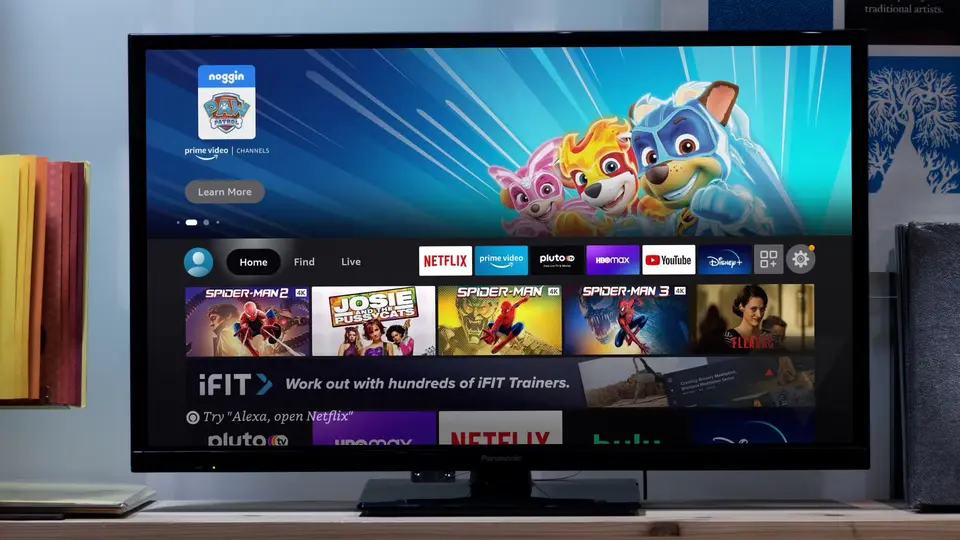
Amazon Fire TV Stick
FireStick Lite, 4K, 4K Max, Fire TV Cube & Fire TV
Requirements
Installation Steps
Prepare Your Fire TV Device
From the Home screen, go to Settings (gear icon) > My Fire TV > Developer Options.
💡 If you don't see Developer Options, go to 'About' and click your Device Name 7 times to enable it.
Enable Sideloading
Set Install Unknown Apps to ON to allow downloading apps outside the Amazon Appstore.
Get the Downloader App
Go back to the Home screen, select Find, search for "Downloader", and install it from the official Amazon Appstore.
Download the Airtek TV APK
Open Downloader. In the URL box, enter the specific download code or direct URL provided in your Airtek TV welcome email.
Install the App
Once the download completes, a prompt will appear. Click Install, then Done.
Cleanup
Delete the APK file to save storage space on your device.
Login and Enjoy
Open the Airtek TV app, enter your Username and Password, then click Login. Wait for the channels and VOD to load.
Troubleshooting
App Not Loading?
Check your internet connection and try restarting the app. Make sure your subscription is active.
Buffering Issues?
Reduce video quality in settings or restart your router for better connectivity.
Login Failed?
Verify your credentials in the welcome email. Contact support if issues persist.
Ready to Watch?
Get your Airtek TV subscription today and start watching 24K+ channels!